Accelerometer Beat Control
@description @boardname@ guitar: using accelerometer to control tempo
~avatar avatar
Use the Accelerometer to control guitar tempo * Concepts: * Gravity * Acceleration * X, Y, Z coordinates * Tempo * Beat * Mapping * Graphing * Absolute value
~
Duration: 30 - 45 minutes
accelerometer controlled tempo
https://youtu.be/kA0HpqCWsjs
Blocks
input.acceleration(Dimension.Y)
music.setTempo(120)
pins.map(0, 0, 1023,60, 320)
Math.abs(1)
Accelerometer, gravity and tilting!
The @boardname@ contains an accelerometer sensor that is able to measure forces applied to the board. On earth, we are subject to the gravity force which pulls us to the ground!
https://youtu.be/0SULoTKmkhI
When the @boardname@ is flat on a table, with the screen pointing up, the gravity force is aligned with the Z axis of the @boardname@.

If you tilt it up and down, the force will align with the Y axis -- this is how we can detect tilting!!! If the force along Y grows, the @boardname@ is tilting more and more vertically!
Measuring Acceleration along different coordinates (X, Y, Z axis)
The acceleration block approximately measures milli-g, which is 1/1000 of a g or the acceleration of gravity.
Step 1: Graphing acceleration
basic.forever(() => {
    led.plotBarGraph(input.acceleration(Dimension.Y), 1023)
})
Create the code that measures the change in the Y axis acceleration as a graph on the LEDs
Dowload the code to the @boardname@
Test the movements that move the graph from 1 to 5 bars on the LEDs
Extra
Try graphing the acceleration along the X and Z axis. Can you explain the differences?
~hint
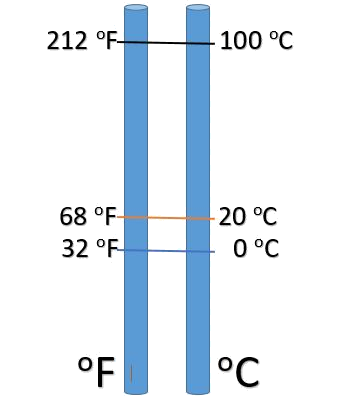
Mapping
It is common to map one standard to another - such as with temperature
~
Step 2: Mapping acceleration to Beat
@boardname@ sensors produce signal values between 0 to 1023. The map block converts the signal to a desired range.
basic.forever(() => {
        music.setTempo(pins.map(Math.abs(input.acceleration(Dimension.Y)),
            0, 1023,
            60, 320))
         music.playTone(Note.C, music.beat(BeatFraction.Quarter));
})
Create the code that Maps Y axis acceleration as tempo
Download the code to the @boardname@ on the guitar
Test the movements that speed and slow the tempo
Step 3: Combine with light sensor tone control
Put it all together!
basic.forever(() => {
        music.setTempo(pins.map(Math.abs(input.acceleration(Dimension.Y)),
            0, 1023,
            60, 320))
        music.playTone(
            input.lightLevel() * 25,
            music.beat(BeatFraction.Quarter)
        );
})
Combine the code above with the light sensor tone control code from the previous activity
Download the code to the @boardname@ on the guitar
Now play the guitar adjusting tone and tempo using the light sensor and accelerometer!
~button /projects/guitar/pinpress
NEXT: Pin Press on/off